Working with dates in Excel formulas can be very useful once you understand some basics. When it comes to working with large sets of data Excel is considered to be a very powerful tool. However, we often limit our thinking to traditional numbers. Excel treats a date just like any other number. Understanding how to format dates, do basic date calculations, and also use dates in formulas can save time.
A Date is a Simple Number in Excel
Excel stores all data in a format known as Serial Date (ddddd) or Serial Date-Time (dddd.ttttt). This number simple tracks the offset from a base date January 0, 1900. The ddddd portion of the number is the number of plus or minus days from the base date. In addition, the .ttttt is a percentage of a 24 hr day (ie. 6am = .25 or 6pm = .75). (Check out out this article at Cpearson for a deeper technical dive). Storing basic date/time info as a decimal number makes basic calculations very simple while allowing the data to be presented or reformatted easily.
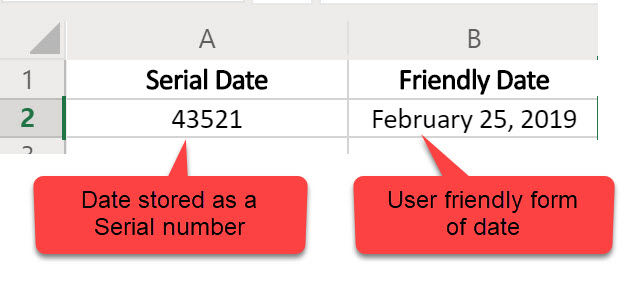
Formating Dates in Excel
Excel makes it very easy to quickly change the format of a date in an Excel cell.
- Select a single cell, row, column or also a click and drag to select the cells to change the date format
- There are a number of ways to access the Number format menu
- Home Ribbon (Toolbar) -> Number -> Use pull Down and select date
- Ctrl – 1 on Windows desktop
- Right-click – > Number Format
- Select the date format that works for this case
- Category -> Date
- Sample – shows what the date format will look like
- Type – Different date options

Dates in Excel Formulas
Working with dates in Excel formulas is as easy as working with any other sets of data once you know what to expect.
Subtract Two Dates in Excel
Excel allows you to subtract two dates from each other when you want to know the number of days between. For instance, project plans of Gantt charts might use this approach. In order to determine task duration subtract the start from the end date. A simple subtraction formula will work (=A1-B1).
Subtracting a Date and a number in Excel
Excel easily supports subtracting a number from a date. Finding the date “X” number of days ago maybe the goal. For instance, calculating lead times for inventory might be needed. If the materials for a job have a 90 day lead time and the jobs need to start on May 23, I need to place the order (=Date-90).
Adding Dates in Excel
When working with adding dates the most common case is adding a number of days to a specific date. For example, when would we be done if a project started on June 3 and it takes 15 days complete.
Interactive Demo
Double click on the cells and change the data to see how it works.
PRO-TIP – When working with basic date math make sure to format the formula cell for the type of number you are looking for. If the goals is to see a number of days use a General or Numeric format. However, if the goal is to see a specific date format the formula as a date field.
Summary
In conclusion, dates are treated just like any other numbers in Excel. Understanding how dates are stored and formatted in Excel makes it easy to find the answers you are looking for.